Overview
This article provides a step-by-step guide on how to register your Cube-IQ software. Registration is necessary to activate your copy of the software, enable special features, or reset a trial period.
Below, you will find the system requirements, the procedure for generating, and entering the activation key.
Requirements
- Cube-IQ software installed on your system.
- Internet access to send an email for activation.
- A valid Registration ID (generated from the software).
- A License Key (provided by MagicLogic after registration).
Procedure
Follow these steps to register your Cube-IQ software:
- Open Cube-IQ and navigate to the Help & Registration tab.
- Click on the Register button.
- In the registration window:
- Locate the Registration ID. (i.e. W1SXX-I4XXX-VXXXX-TXXXX-XXXX)
- Copy the Registration ID and send it via email to support@magiclogic.com.
- MagicLogic will reply to your email with a License Key.
- Enter the License Key into the registration window.
- Click OK to complete the activation.
Alternate Registration Method
If you are unable to register using the standard method, follow these alternative steps:
- Locate the Cube-IQ installation folder, usually found at:
C:\Program Files (x86)\Cube-IQ5 - Find and open the file Register.exe.
- The registration screen will appear, displaying a new Registration ID.
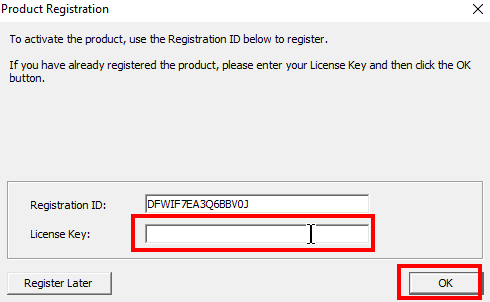
- Copy the Registration ID and email it to support@magiclogic.com.
- Once you receive the License Key:
- Enter it in the same registration window.
- Click OK.
Assistance
If any further assistance is needed, please contact our Support team.